13. Shop Products & IAP Rewards
Configure IAP databases, create custom product packs without code, and connect purchase buttons to reward deliveries.
13.1 The game-side assets
- IAP Product Data: Describes one product and its rewards.
- IAP Database: Lists the product assets available to the game's reward lookup.
- IAP Reward Manager: Connects successful purchases to the matching product's rewards.
- Shop Popup: Displays the shop categories and connects its existing buttons.
Open Assets/In-apps/IAPDatabase.asset to see the registered game-side products.
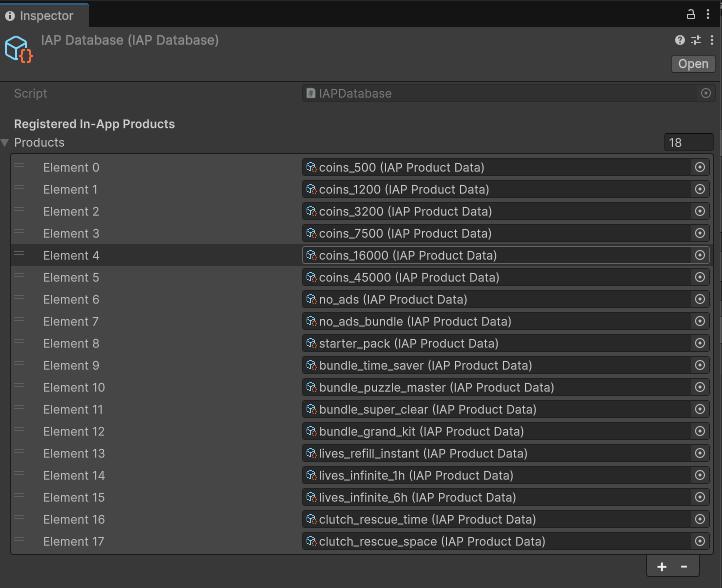
Select a product reference, or open an asset in Assets/In-apps/Products, to edit the actual reward data. The separate store catalog is not the same as these game-side product assets.
13.2 Product fields
| Field | What it does |
|---|---|
| Product Key | Unique key linking the purchase to this game's reward definition. It must match the registered purchase product. |
| Display Name | Product title available to the game UI and delivery message. |
| Description | Description of the offer. |
| Fallback Price | A display fallback. Changing it does not set the real store price. |
| Icon | Product artwork available to UI that uses this field. |
| Is One Time Only | Records a purchased flag after delivery. The shop must use that state to hide or block the offer; the checkbox alone is not a universal purchase block. |
| Rewards | The list of rewards delivered for this product. |
Existing shop cards can have their own artwork and text. Check and update the visible card too; product metadata is not a promise that every existing card updates automatically.
13.3 Reward choices
Rewards are entries inside a product asset. They are not separate ScriptableObject files in this project.
| Reward Type | Fields to set | Result |
|---|---|---|
| Coins | Amount | Adds coins. |
| Booster | Booster Type and Amount | Adds stock for an existing booster. |
| Infinite Lives | Duration Hours | Grants infinite lives for that duration. |
| Full Refill Lives | Type | Fills lives to the normal maximum. |
| Remove Ads | Type | Enables the existing no-ads state. |
| Unlock Shelf Slot | Type | Runs the existing Unlock booster for free. It needs an eligible lock or obstacle during gameplay. |
Only fields relevant to the selected reward type are used. For example, Duration Hours is used for Infinite Lives, while Amount is used for coins and boosters.
13.4 Make a new reward pack without changing scripts
-
01
Open
Assets/In-apps/Products
-
01
Step 1
Duplicate a similar product asset using the Project window.
-
01
Rename the new asset
-
01
Give it a unique Product Key
-
01
Step 1
Set its title, description, artwork, and display fallback.
-
01
Edit the Rewards list
-
01
Step 1
Add the new product asset to IAPDatabase > Products.
-
01
Step 1
Ensure the game manager's IAP Reward Manager uses this database.
-
01
Step 1
Connect a purchase button to the matching registered product through the existing purchase-button integration.
-
01
Step 1
Test the purchase result and all rewards.
Example: A Weekend Pack can contain Coins > 2000, Booster > Hammer > 3, and Infinite Lives > 2 hours. These existing reward types can be combined without adding a new reward script.
Creating the reward asset does not register a real store product. Its key also needs to exist in the purchase setup. Store and SDK setup are covered separately.
13.5 Shop layout and new calling
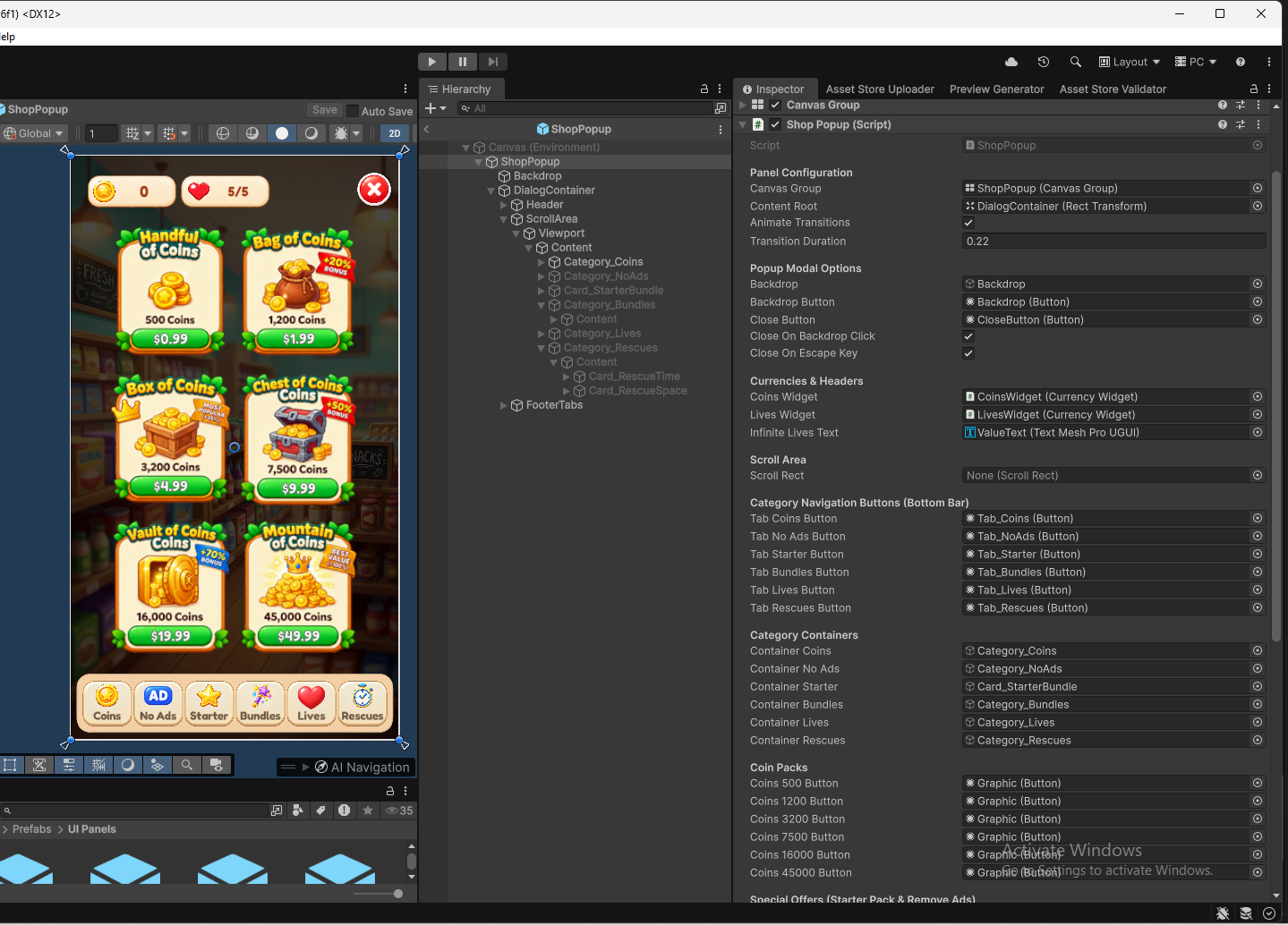
The supplied shop has categories for Coins, No Ads, Starter, Bundles, Lives, and Rescues. Its Inspector connects the category buttons, content containers, and existing purchase buttons.
For an existing offer, change its game-side reward asset and update the card's visible content. Assigning a replacement Button to an existing named field keeps that field's existing product call.
For a new product key, do not assign its card to an unrelated old product field: the supplied Shop Popup binds those fields to specific existing keys. Use the included Bcyly IAP Button integration on a new card, select its matching registered product, and let that component own the purchase click. Avoid also assigning that button to an old auto-bound purchase field.
The simple purchase flow is:
Purchase button > purchase system > successful purchase > IAP Reward Manager > matching Product Key in IAP Database > Rewards list > coins/lives/boosters update.
For an extra purchase location, reuse the existing purchase-button integration. Do not connect the product's Deliver action directly to a normal purchase click; delivery belongs after successful purchase confirmation.
The existing time and space rescue popups listen for specific rescue product keys. A new general reward pack does not automatically become a new rescue behavior.